Notifications
Notifications is only available in Crawlab Pro.
Crawlab Pro's notification system allows you to stay informed about important events and system performance metrics. This guide explains how to configure and use notifications effectively.
Notification Concepts
The notification system in Crawlab is built around several key concepts:
Notification Settings
Notification settings define what triggers a notification and how the notification message is formatted.
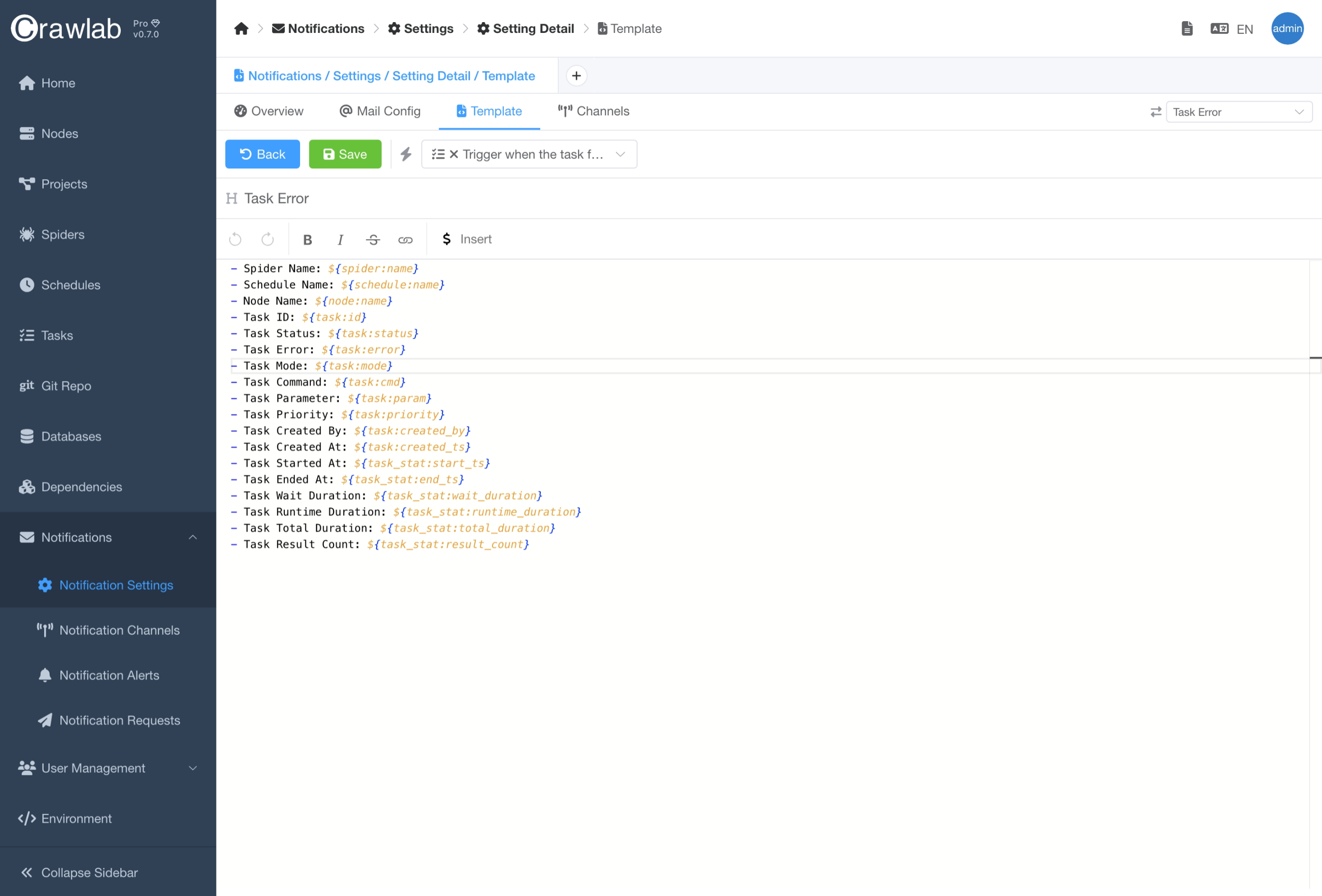
Templates
Templates determine the content and format of your notification messages. You can create custom templates for different types of events using variables that will be populated with actual data when a notification is sent.
Triggers
Triggers define the conditions that will cause a notification to be sent. Common triggers include:
- Task completion (success/failure)
- Spider schedule execution
- Node offline/online
- CPU/Memory/Disk alerts
Each trigger can be associated with specific templates and channels.
Notification Channels
Channels represent the communication methods used to deliver notifications. Crawlab Pro supports multiple channel types:
Instant Messaging (IM)
- Slack: Send notifications to Slack channels or direct messages
- Discord: Post notifications to Discord servers
- Microsoft Teams: Integrate with Microsoft Teams channels
- Telegram: Send alerts to Telegram groups or users
- DingTalk: Notify users via DingTalk chatbots
- Lark: Send messages to Lark users
- WeChat Work: Send messages to WeChat Work users
Email
Configure SMTP settings to send email notifications to specified recipients.
Notification Alerts
Alerts are triggered when performance thresholds of nodes are exceeded. They help you monitor the health of your Crawlab infrastructure.
Metric Types
- CPU Usage: Alert when CPU usage exceeds defined thresholds
- Memory Usage: Monitor memory consumption of the Crawlab system
- Disk Space: Receive warnings when available disk space falls below critical levels
Alert Configuration
For each metric, you can define:
- Metric Target: Which node or nodes to monitor
- Alert Rule: The condition that triggers the alert
- Lasting Duration: How long the condition must persist before triggering the alert
Notification Requests
Notification requests maintain a history of all sent notifications, providing an audit trail and insights into your notification patterns.
Request Details
- Setting: The notification setting that triggered the notification
- Channel: Which notification channel was used
- Status: Success, failure, pending
- Timestamp: When the notification was triggered
- Trigger: What event caused the notification
- Title: The title of the notification
- Content: The actual content of the notification
Request Management
- View notification history
- Retry failed notifications
- Filter and search through past notifications
Setting Up Notifications
Here's how to set up and use the notification system in Crawlab Pro:
- Create notification channels in
Notifications → Notification Channels - Create notification settings in
Notifications → Notification Settingsand configure the appropriate triggers, templates and channels - For performance monitoring, create notification alerts with appropriate thresholds
Best Practices
- Start with a small set of critical notifications to avoid alert fatigue
- Use different channels for different priority levels
- Create specific templates for each notification type to ensure clarity
- Regularly review notification history to identify patterns and optimize your setup
- Set reasonable thresholds for performance alerts based on your system's baseline performance