Basic Tutorial
You have now installed Crawlab and perhaps can't wait to start using it. Before you go deep into the details, I would suggest you go through this quick tutorial which would walk you through some basics and get you familiar with some main features in Crawlab.
Introduction
In this tutorial, we are going to create a spider that crawls quotes by famous people on a mock site provided by Zyte (the company behind Scrapy); then we will run it on Crawlab to extract data from the site; finally, we will view the crawled data visually on Crawlab.
The framework we are going to use is Scrapy, the most popular web crawler framework written in Python, which is easy to use yet with many powerful features.
We assume you have installed Crawlab on your local machine by following Quick Start. If you haven't, please refer to Quick Start to install it on your local machine.
Create Spider
First thing first, we are going to create a Scrapy spider on Crawlab.
Now open the browser and navigate to http://localhost:8080, and login with default username/password admin/admin.
Then go to Spiders page, and click New Spider on the top left to open the create dialog.
In the dialog, select Template as "Scrapy" and keep everything else as default. Then click Confirm to create a
spider on Crawlab.
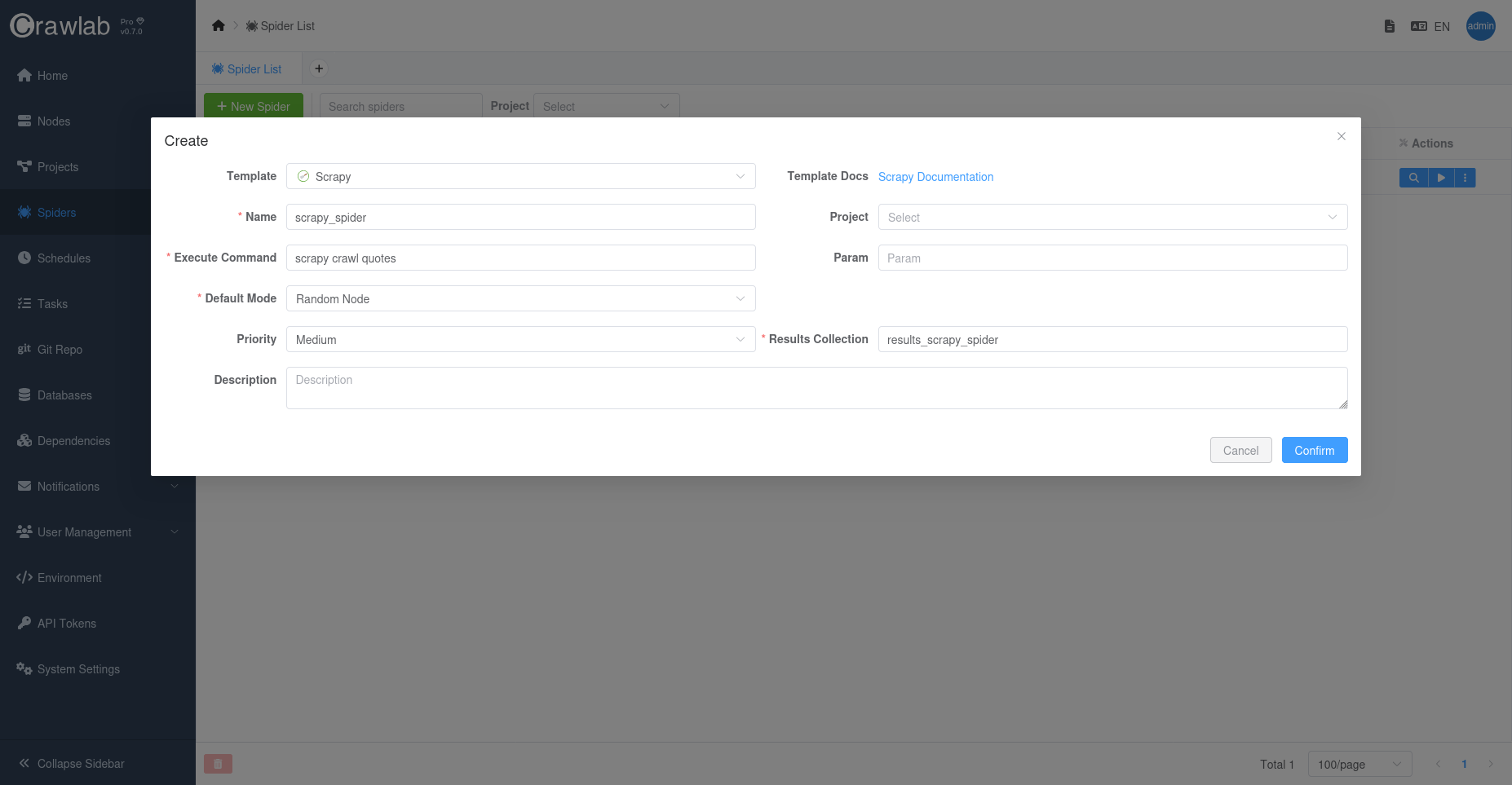
Now you should be able to see the newly created spider on the Spiders page.
Run Spider
Running spider is quite simple.
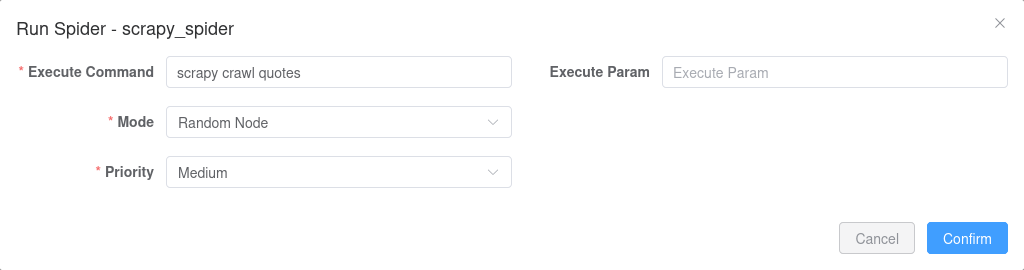
Let's run it by clicking the button with play icon Run, and click Confirm with default settings.
View Task
Great! We have just triggered a spider task, and we should be able to view it in Tasks tab. Let's click on Tasks tab
to take a look.
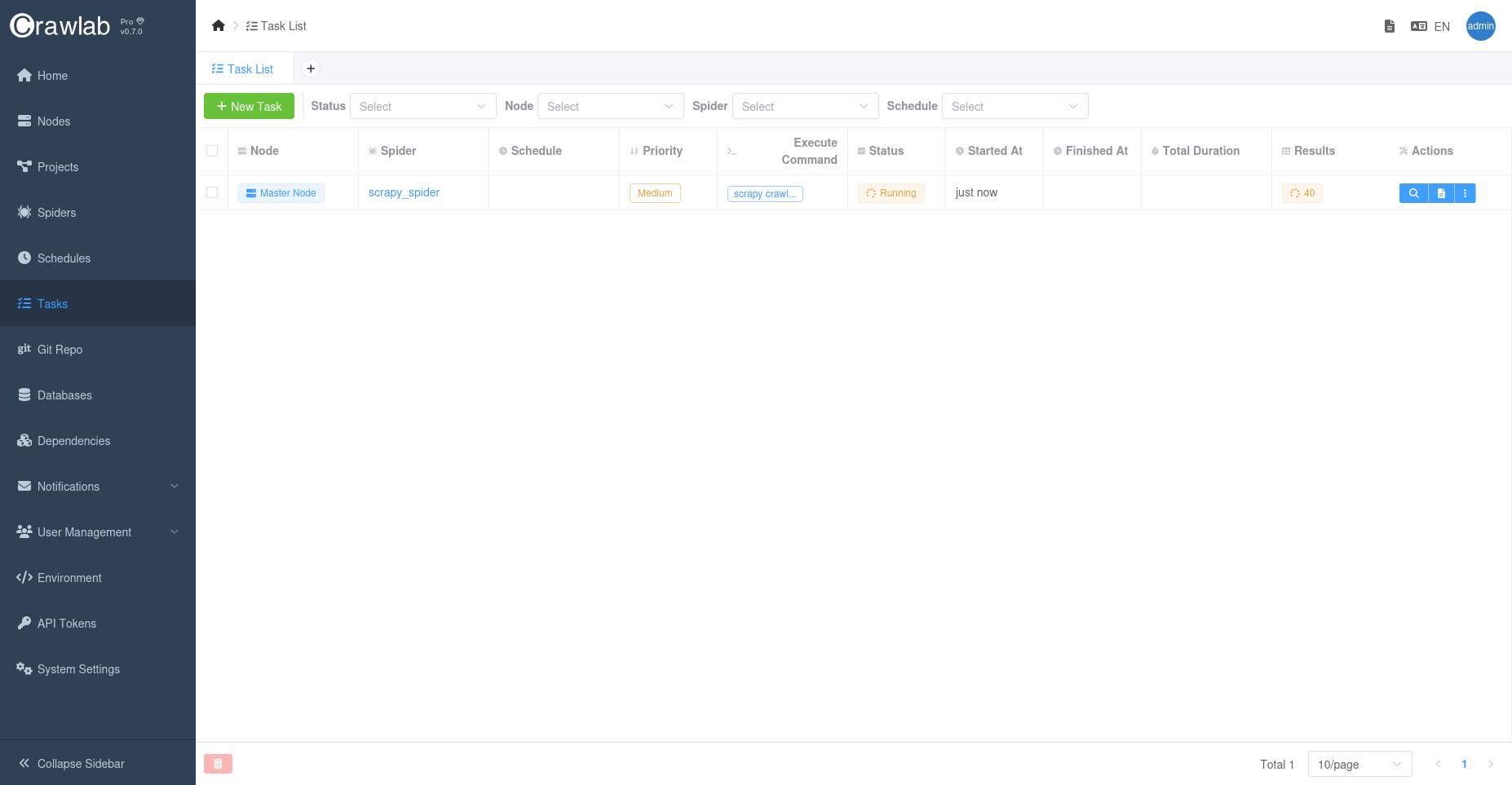
The task is running, and we can view the task detail by clicking the View button on the right.
We can then view realtime logs by clicking Logs tab.
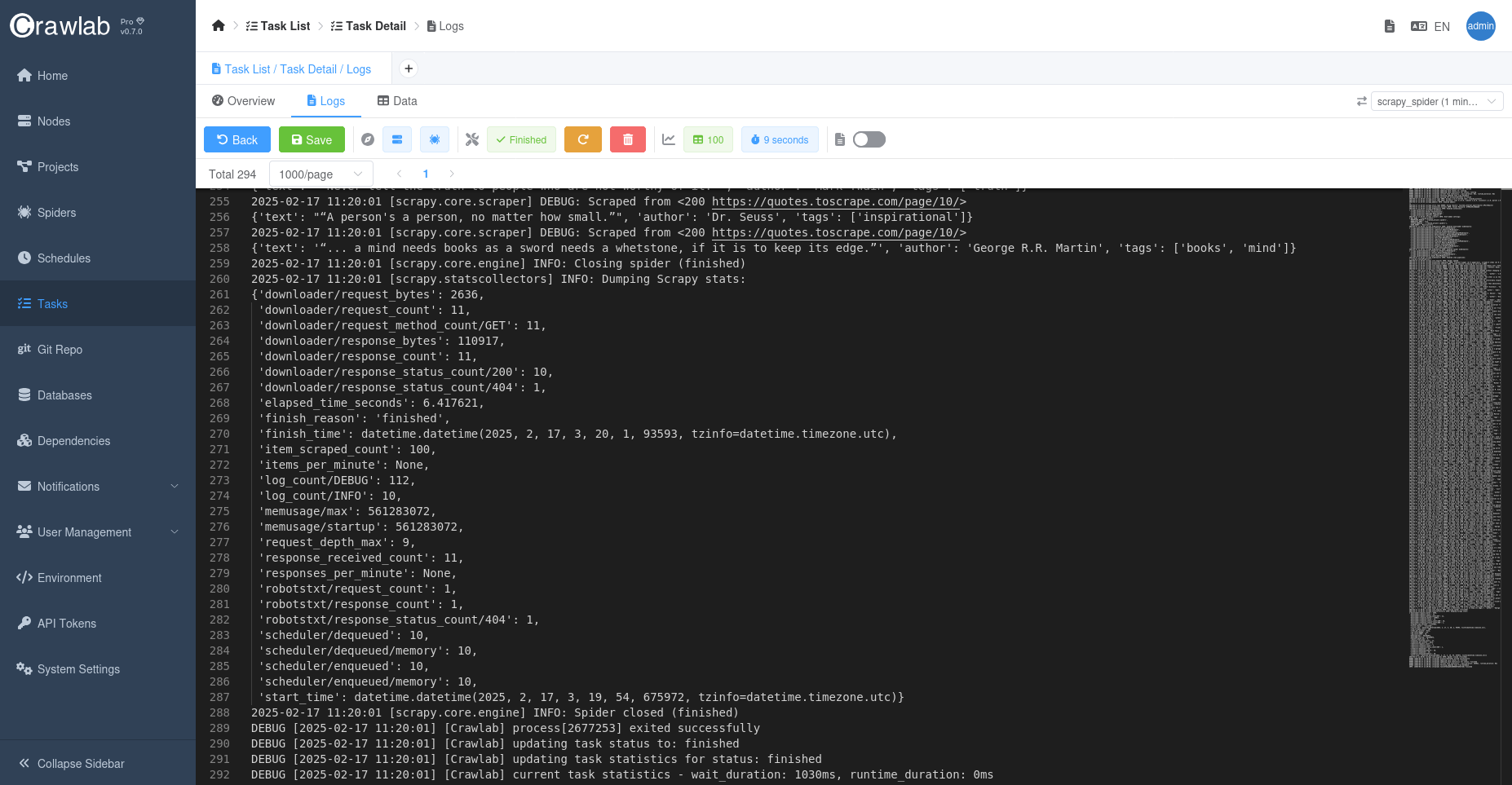
As the spider is crawling, we can also view crawled data by clicking Data tab;
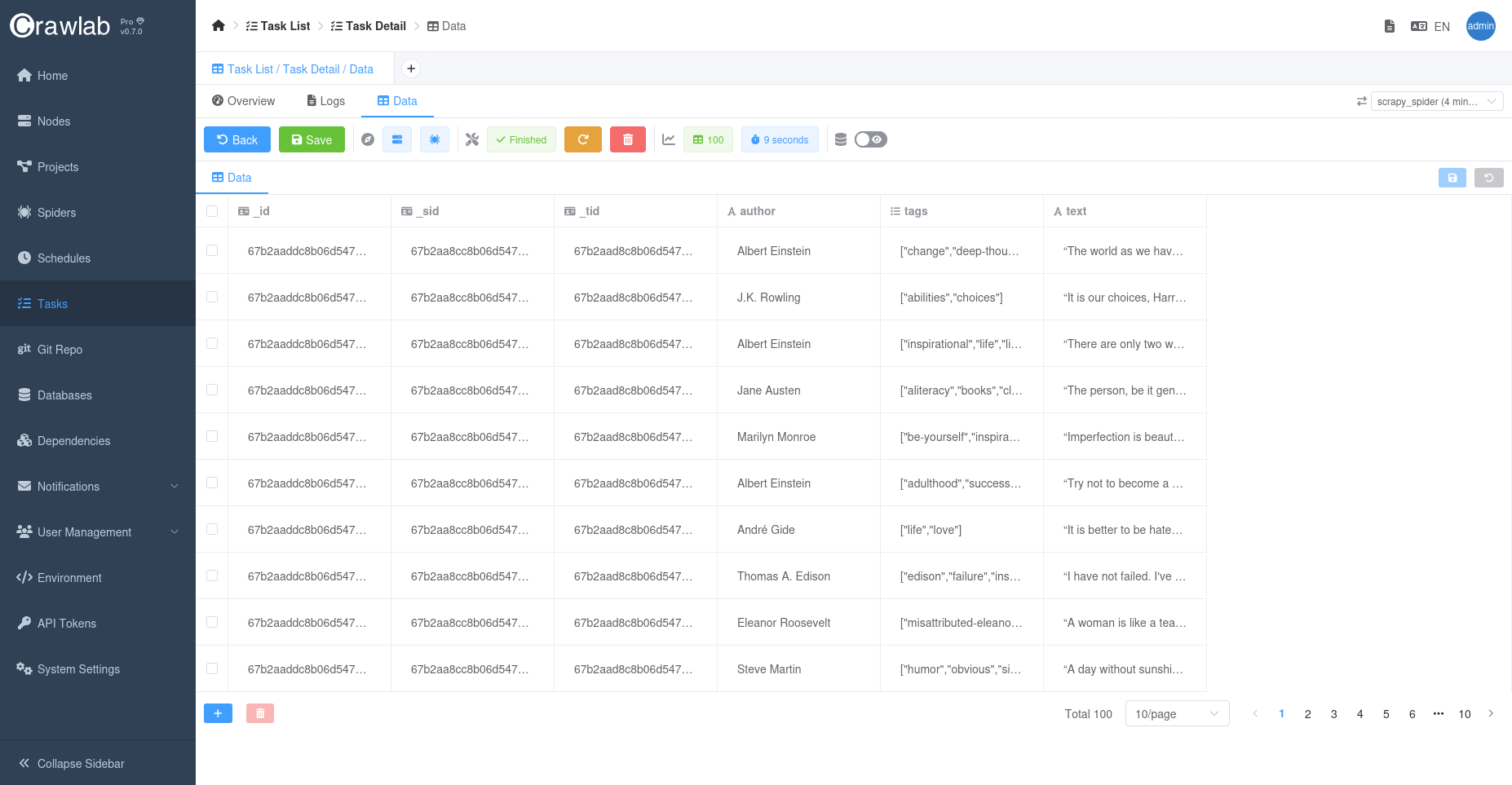
Summary
Let's do some recap here. We have followed a simple process to run a Scrapy spider on Crawlab.
- Created a Scrapy spider on Crawlab from the built-in template
- Triggered a task
- Viewed realtime logs and crawled data on Crawlab
What Next
This quick tutorial provides you with a basic understanding about Crawlab and how to use it to crawl data, including monitoring task logs and view crawled data, etc. But you should be aware that Crawlab is not only limited to that, there are many other powerful features . You can check out other sections of this guide to learn how to use those features.